
Note: Depending on your access rights to OrangeCRM, some of the options and views listed below may vary. See Security and Access and Revisions.
Bank Routes are a method of grouping one or more merchant banks together. Primarily, this grouping mechanism is used to sticky route a customer or a group of customers to a specific merchant account or group of merchant accounts. For more information on setting up bank routes, please contact support at OrangeCRM.
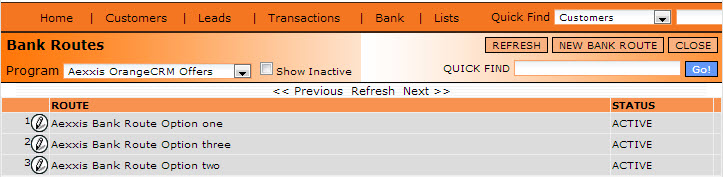
Bank Routes can be accessed from the Bank main menu. Then click on Bank Routes tab. It will allow you to view current bank routes based on the selected program as shown below.
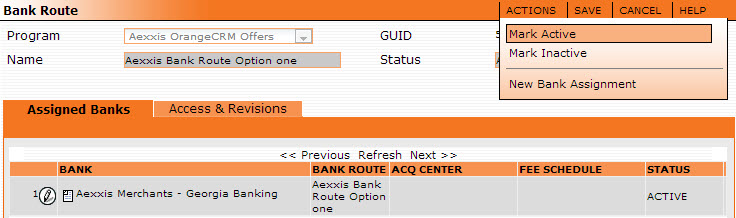
From the Actions Menu - They can be Marked Active or Inactive. Save the record to keep the change.
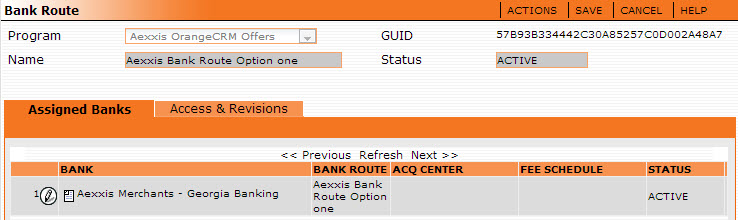
Clicking on one of the Bank Routes above will bring up the merchant banks associated with that particular route.
Creating a New Bank Route
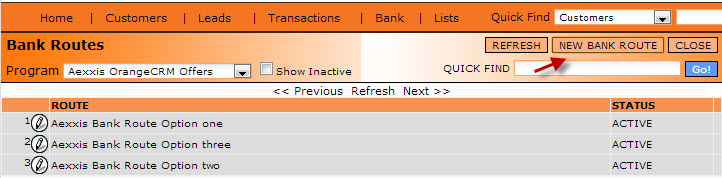
To set up a new bank route, click on the New Bank Route tab from the top right of the Bank Routes window.
Select the Program from the drop down arrow and then name your new Bank route. Save the window and Refresh the view to see your new Bank Route.
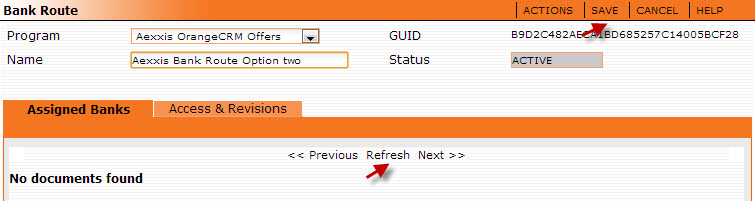
Adding a Bank Assignment to your Bank Route
Click on your Bank Route. From the Actions menu, click on New Bank Assignment.
Note: You can also setup New Bank Assignments from the Merchant Bank form under the Assignments drop down list. (See Merchant Banks for more information.)

A new window will open. Select the Chooser Icon  . It will allow you to pick from any existing Bank Routes.
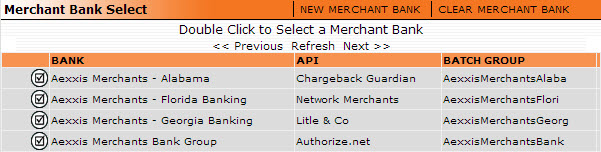
When you select an existing Bank Route, your new Bank Assignment fields will be auto-populated.

You can click on the New Merchant Bank to create a new Merchant bank setup and then assign it to this Bank Route. Or click on Clear Merchant Bank and reassign it to another one.
Assigning a Bank Route to an Acquisition Center
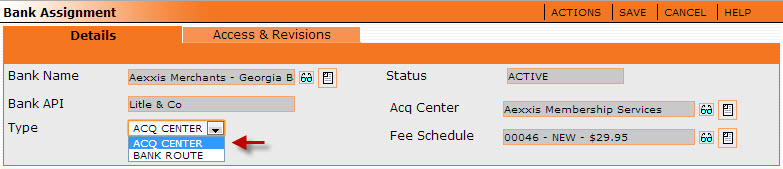
You can create a Bank Route that will work with an Acquisition Center and one specific Fee schedule. This will bill the customer per the configuration of only that Fee Schedule.
Select the Chooser Icon to pick the Acquisition center and Fee Schedule needed.