
Event Reports
 Click one of the links listed above
to jump to a section on this page.
Click one of the links listed above
to jump to a section on this page.
The CSR Event Comparison Report allows you to choose any two Event Groups for a side by side comparison of performance.
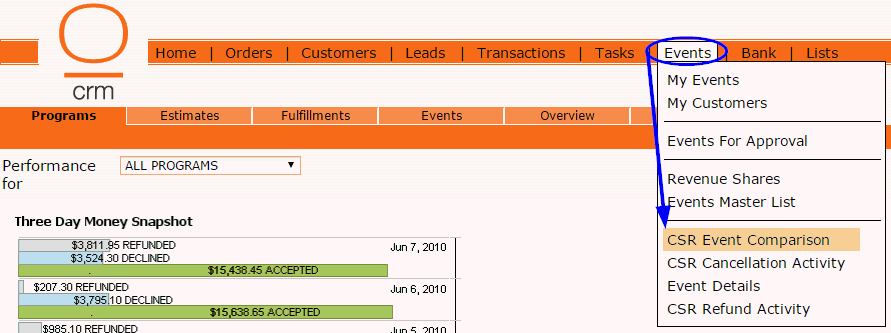
To run this report, go to the Events menu on the home page and click on CSR Event Comparison.
The following box will pop up where you can select the parameters for the report.
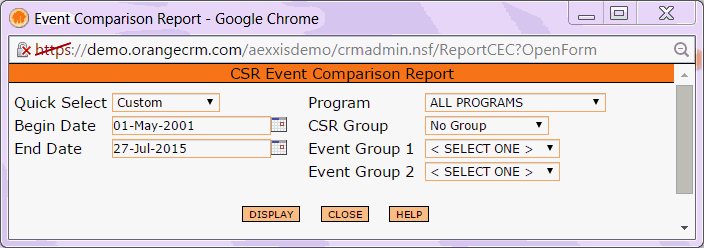
Enter a Begin Date and End Date, or use the Quick Select drop down list to choose a date range.
Select the Program you want to run this report for. If you want to include All Programs, leave the default Program selection as is.
If you want to limit this report to a specific CSR Group, choose one from the drop down list. Otherwise, leave it set to No Group.
Finally, select the two Events you want to compare in this report using the Event Group 1 and Event Group 2 drop down lists.
Then, click the Display button.
The report will now be displayed.
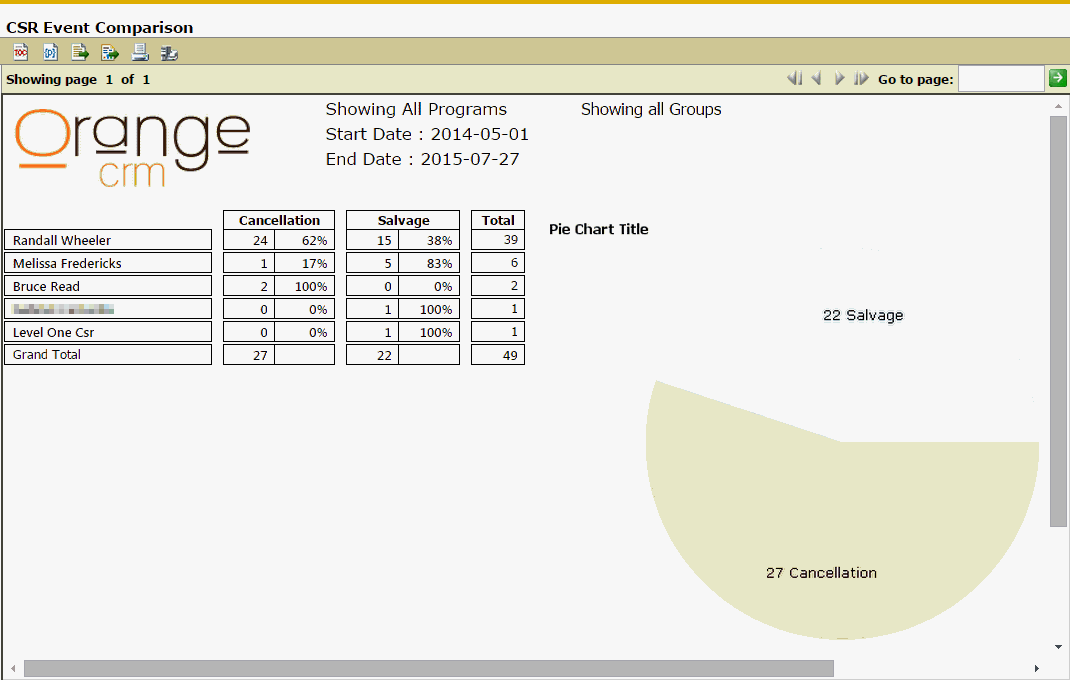
Starting from the Left, the first column displays the names of the CSRs who performed Events in at least one of the two Event Groups within the specified date range.
The next two columns display a side by side comparison of the number of Events performed by each CSR, in each of the two Event Groups. The calculation of the percentages in these two columns is based on the number of Events performed divided by the combined total number of events in the Total column.
The last column provides the combined total number of Events performed by each CSR.
To the Right of that, you will find a pie chart depicting the total number of Events performed in each of the two Event Groups.
The CSR Cancellation Activity Report allows you to compare the number of CSR cancellations and salvages against the number of refunds issued.
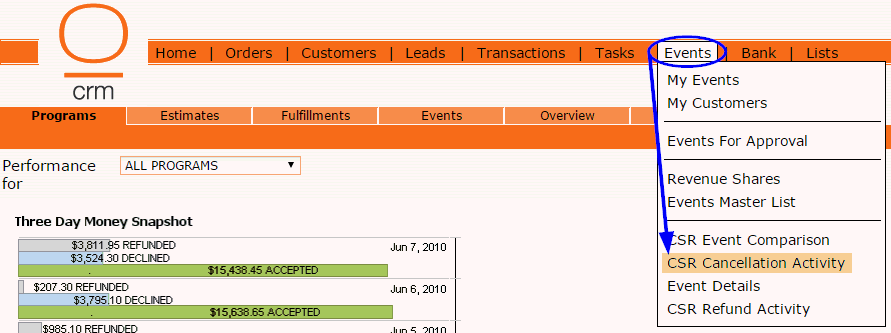
To run this report, go to the Events menu on the home page and click on CSR Cancellation Activity.
The following box will pop up where you can select the parameters for the report.
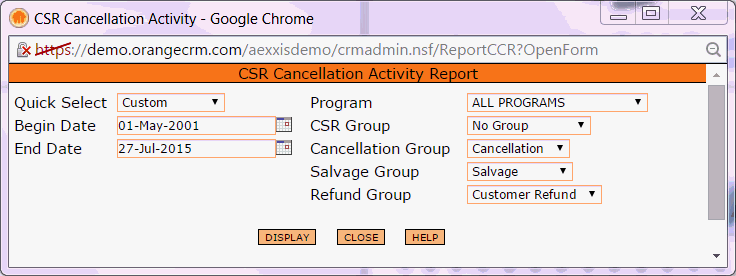
Enter a Begin Date and End Date, or use the Quick Select drop down list to choose a date range.
Select the Program you want to run this report for. If you want to include All Programs, leave the default Program selection as is.
If you want to limit this report to a specific CSR Group, choose one from the drop down list. Otherwise, leave it set to No Group.
Then, click the Display button.
The report will now be displayed.
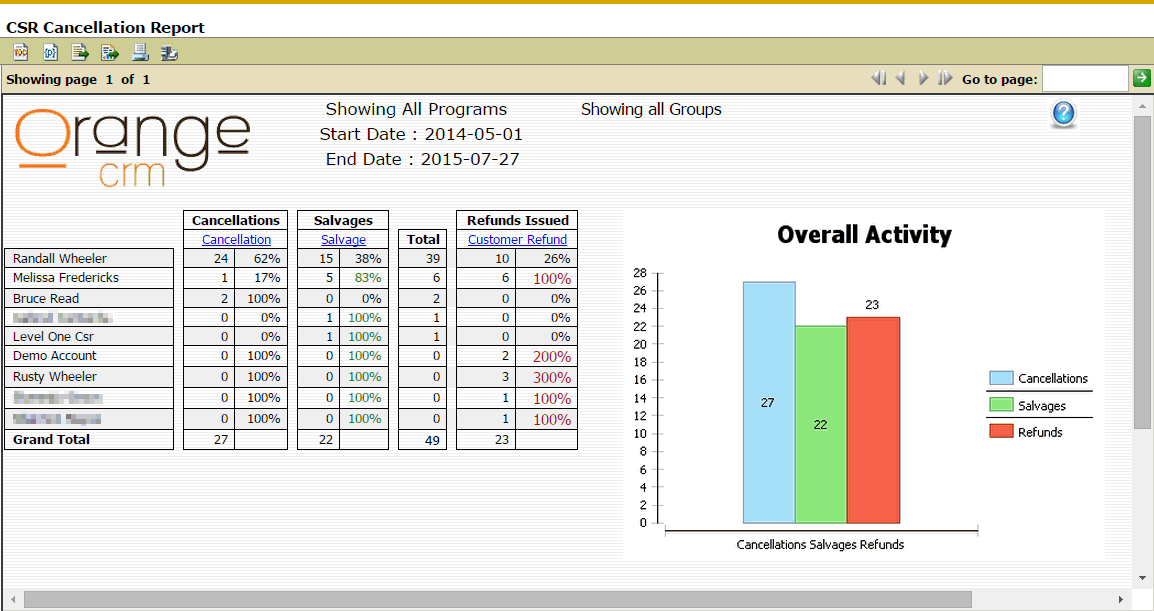
Starting from the Left, the first column displays the names of the CSRs who performed at least one Cancellation, Salvage or Refund within the specified date range.
The next two columns display a side by side comparison of the number of Cancellations and Salvages performed by each CSR. The calculation of the percentages in these two columns is based on the number of Cancellations/Salvages performed divided by the combined total number of events in the Total column.
The Total column provides the combined total number of Cancellations and Salvages performed by each CSR.
The last column, shows how many Refunds were issued by each CSR. The calculation of the percentages in this column is based on the number of refunds issued divided by the combined total number of Cancellations/Salvages in the Total column.
To the Right of that, you will find a bar graph depicting the total number of Cancellations, Salvages and Refunds performed.
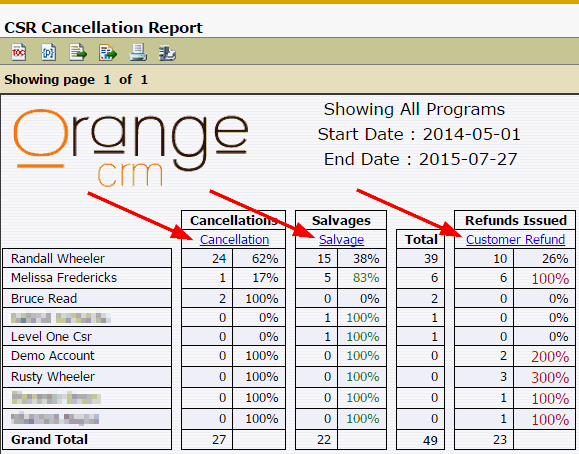
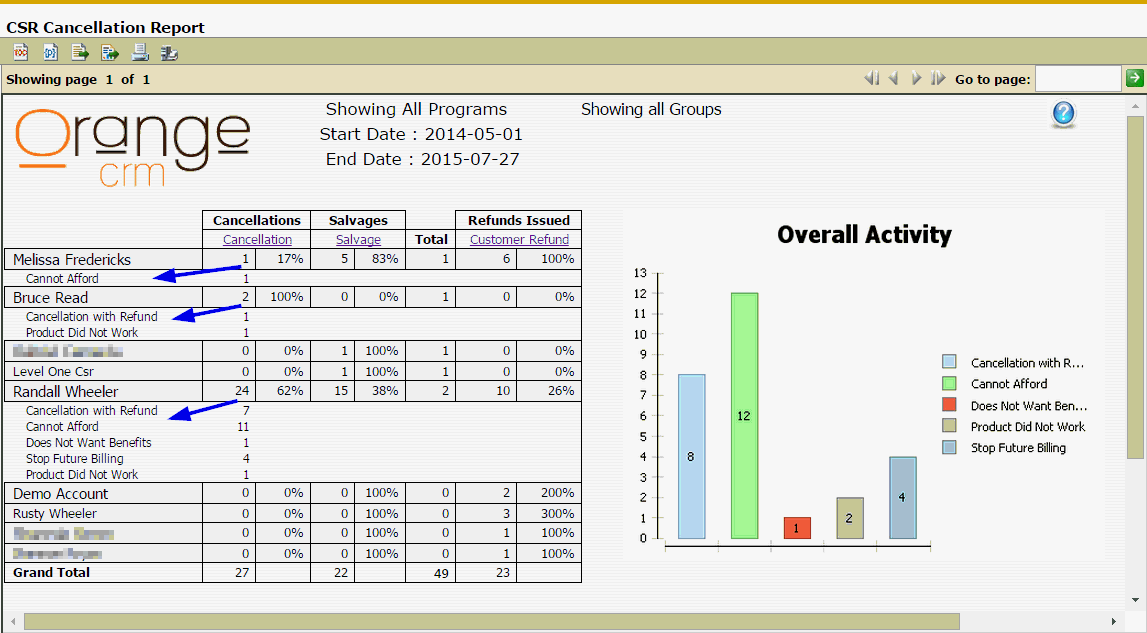
To
drill into the report and see a breakout of the names and quantities of
the Events performed within each of the three Event Groups, click on the
blue Cancellation, Salvage and Customer Refund hyperlinks. See example
shown below.
The Event Details Report shows you the name and quantity of Events performed in the specified Event Group.
To run this report, go to the Events menu on the home page and click on Event Details.
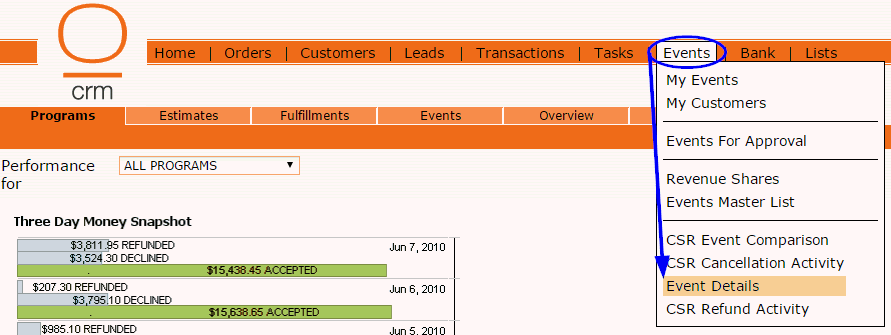
The following box will pop up where you can select the parameters for the report.
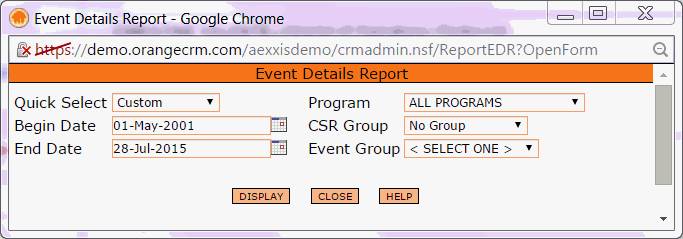
Enter a Begin Date and End Date, or use the Quick Select drop down list to choose a date range.
Select the Program you want to run this report for. If you want to include All Programs, leave the default Program selection as is.
If you want to limit this report to a specific CSR Group, choose one from the drop down list. Otherwise, leave it set to No Group.
Finally, select the Event Group from the drop down list.
Then, click the Display button.
The report will now be displayed.
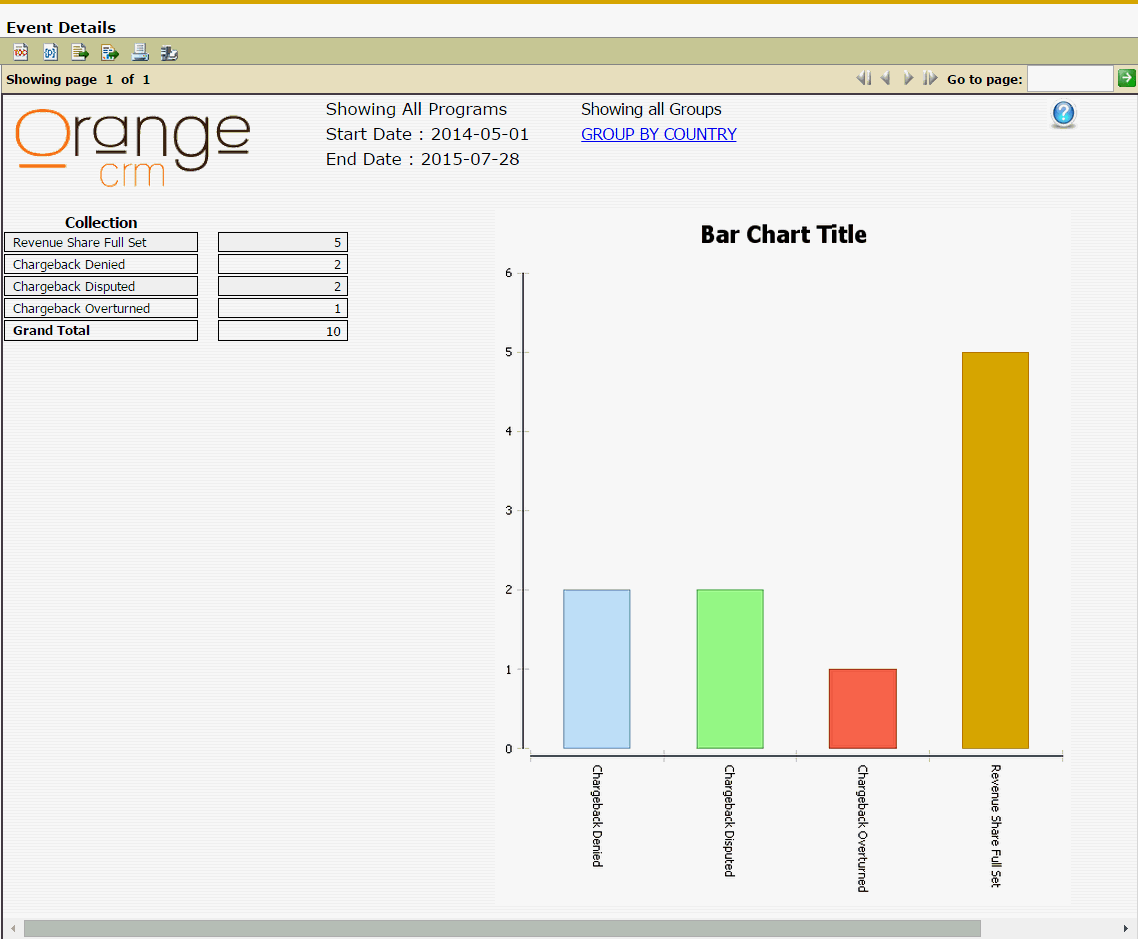
Starting from the Left, the first column displays the names of the Events performed in the specified Event Group.
The second column displays the number of Events performed.
To the Right of that, you will find a bar graph depicting the total number of each Event in this Event Group.
The CSR Refund Activity Report allows you to view how many purchases are being refunded, quickly identify which agents are processing the most refunds and determine how much money is being saved by issuing partial refunds instead of full refunds.
To run this report, go to the Events menu on the home page and click on CSR Refund Activity.
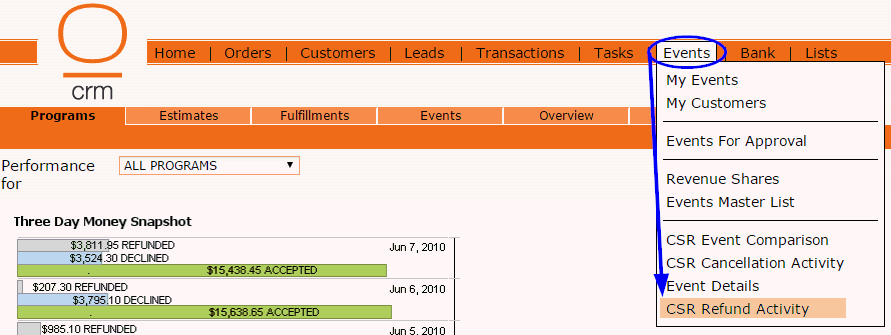
The following box will pop up where you can select the parameters for the report.
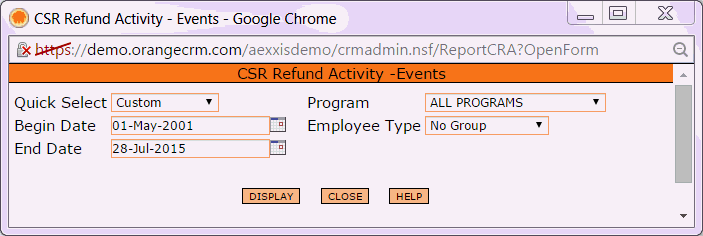
Enter a Begin Date and End Date, or use the Quick Select drop down list to choose a date range.
Select the Program you want to run this report for. If you want to include All Programs, leave the default Program selection as is.
If you want to limit this report to a specific Employee Type, choose one from the drop down list. Otherwise, leave it set to No Group.
Then, click the Display button.
The report will now be displayed.
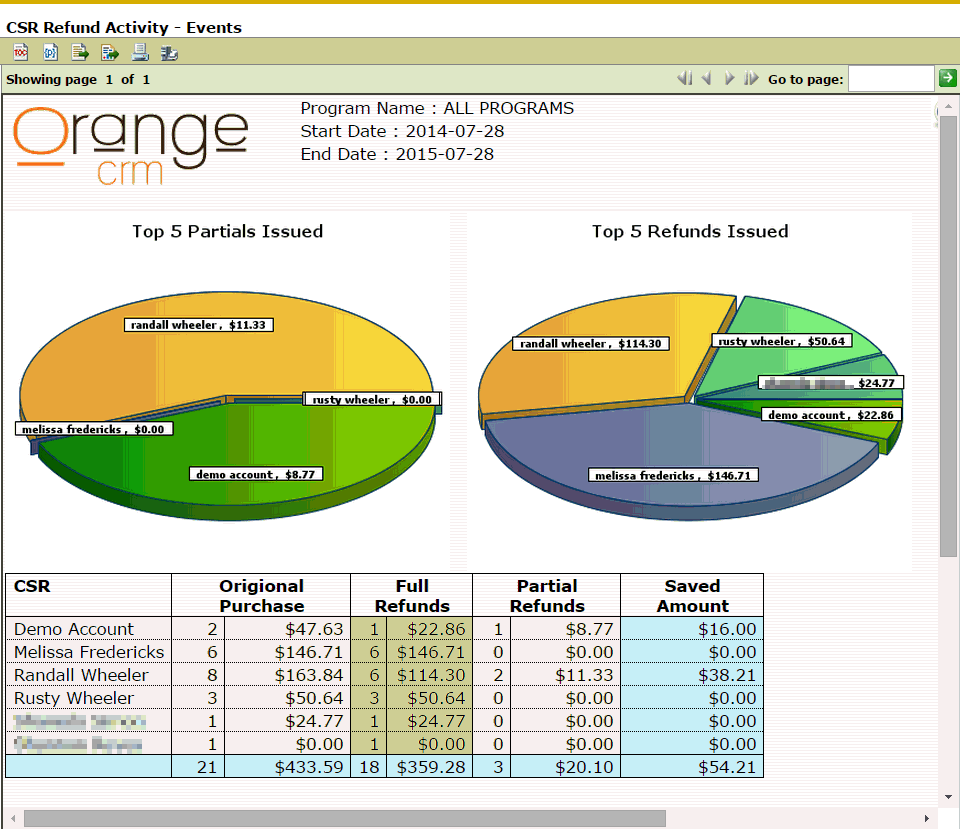
At the top of the report you will see 2 pie charts depicting the Top 5 Partial Refunds Issued and the Top 5 Full Refunds Issued. Each pie chart displays the names of the 5 CSRs with the highest dollar amount in partial/full refunds.
Below that you will find a table that provides a breakdown of the quantity and dollar amount of all full and partial refunds issued by each CSR within the specified date range, as well as the amount of money saved.
Starting from the Left, the first column displays the CSR name.
The second column shows the quantity and dollar amount of all Original Purchases that were issued a refund within the specified date range.
The third column shows the quantity and dollar amount of Full Refunds issued by each CSR within the specified date range.
The fourth column shows the quantity and dollar amount of Partial Refunds issued by each CSR within the specified date range.
The fifth column shows the total dollar amount Saved by each CSR.