
Note: Depending on your access rights to OrangeCRM, some of the options and views listed below may vary. See Security and Access and Revisions.
Deposit Banks are the banks used to deposit cleared funds into. They are also the banks that refunds and chargebacks will be drawn from.
To see a list of all your current deposit banks, from the main navigation page of the CRM got the Banks menu and select Deposit Banks. A list will appear like the one below.

Deposit Banks can be created by clicking the New Deposit Bank button from the Deposit Banks list.
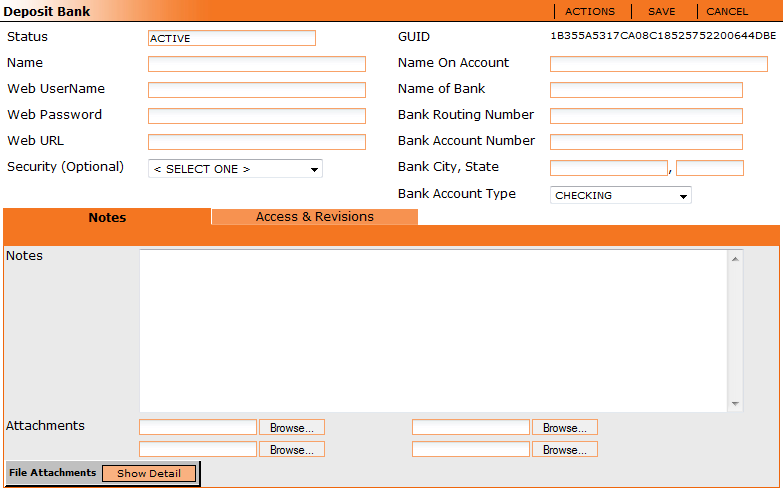
Status - A bank's status is set by default to Active when created. Status can be changed from the Actions menu.
Name - This is for the name of the financial institution and type of account you are setting up.
Web UserName, Password and URL - These fields are optional and may be used to interact with your bank via the internet.
Security (Optional) - Allows you to set the security type for this bank (for more information see Security).
GUID - The unique number given to this deposit bank.
Name On Account - This is the name of your company as listed with the bank
Name of Bank - The name of the bank.
Bank Routing Number - Contact your bank for this information.
Bank Account Number - Contact your bank for this information.
Bank City, State - The city and state information about the bank
Bank Account Type - The type of account.
Notes and Attachments - These fields are optional and may be used to keep track of other important information about this account.
Access and Revisions
The access and revisions tab shows any change that has been made to this record. It also shows who has access to view this record. See Access and Revisions.