
The CSR Event Comparison Report allows you to choose any two Event Groups for a side by side comparison of performance.
To run this report, go to the Events menu on the home page and click on CSR Event Comparison.
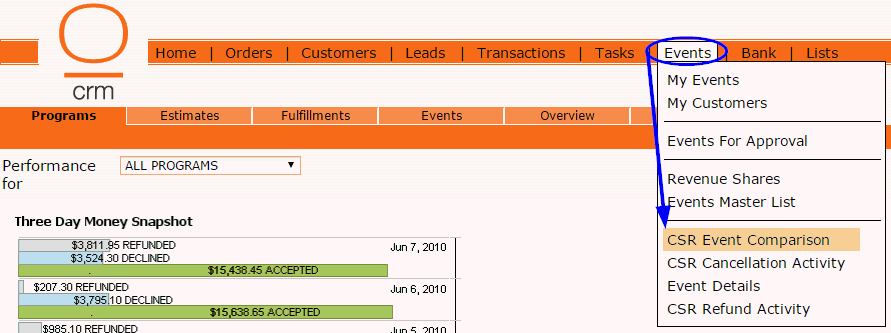
The following box will pop up where you can select the parameters for the report.
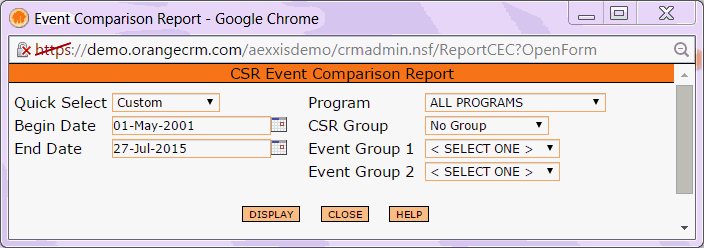
Enter a Begin Date and End Date, or use the Quick Select drop down list to choose a date range.
Select the Program you want to run this report for. If you want to include All Programs, leave the default Program selection as is.
If you want to limit this report to a specific CSR Group, choose one from the drop down list. Otherwise, leave it set to No Group.
Finally, select the two Events you want to compare in this report using the Event Group 1 and Event Group 2 drop down lists.
Then, click the Display button.
The report will now be displayed.
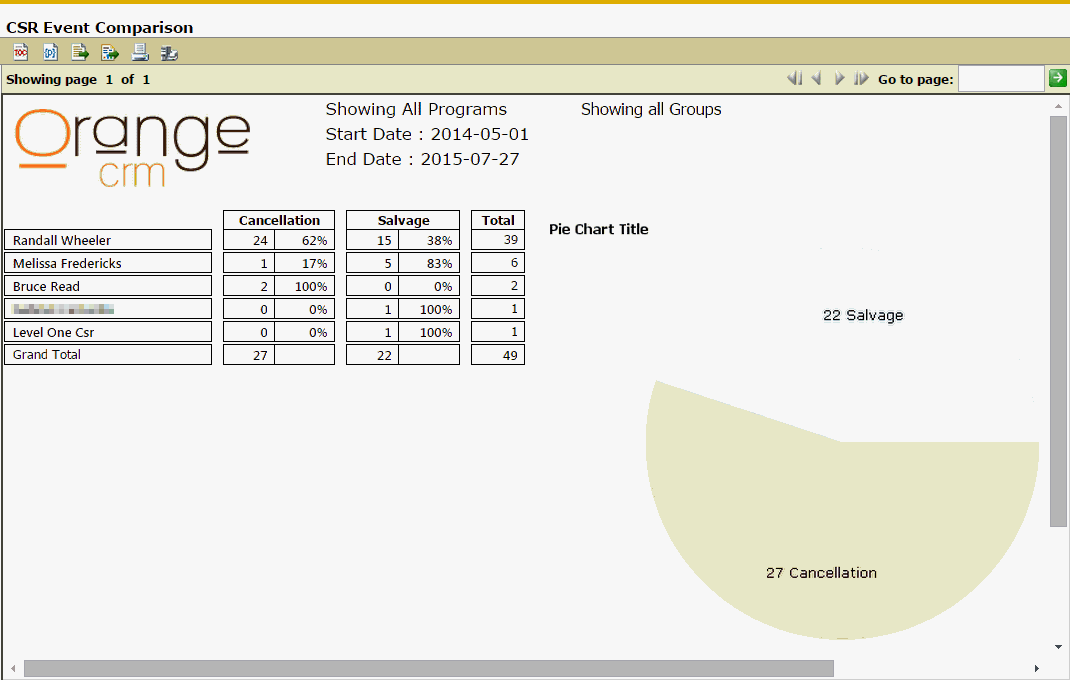
Starting from the Left, the first column displays the names of the CSRs who performed Events in at least one of the two Event Groups within the specified date range.
The next two columns display a side by side comparison of the number of Events performed by each CSR, in each of the two Event Groups. The calculation of the percentages in these two columns is based on the number of Events performed divided by the combined total number of events in the Total column.
The last column provides the combined total number of Events performed by each CSR.
To the Right of that, you will find a pie chart depicting the total number of Events performed in each of the two Event Groups.